WEBP to PNG
Convert a WebP image to PNG when you need a transparent graphic for a presentation, document, or image editor. Transparent areas stay transparent; the result is a still PNG. Free, no signup. Choose Multiple files to convert up to 20 images locally and download a ZIP.
Drop your file here, or browse
Accepts: image/webp, .webp · Max 1GB · always free
We try this conversion in your browser first. If it cannot run locally, the file is uploaded for server conversion.
Choose your .WEBP file and we'll convert it to .PNG format — fast, free, and secure.
Try a WebP with a transparent background
This original 640 × 400 sample has transparent corners, colored shapes, and a partially transparent circle. Convert it and compare the result on a colored background.
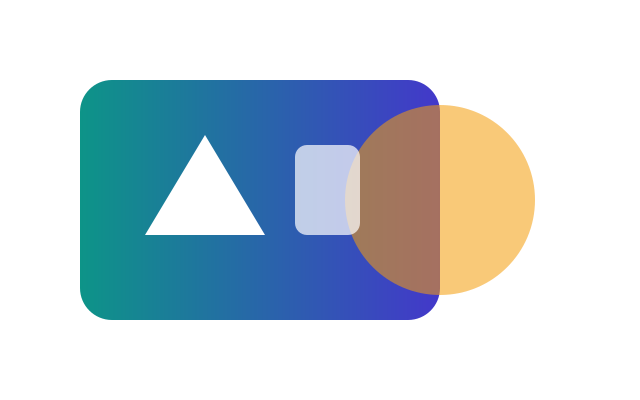
- The PNG should keep the 640 × 400 dimensions.
- The corners should remain transparent, not become white pixels.
- The file may be larger; PNG does not restore detail lost in the source.
Continue your task
- Convert multiple images and download a ZIP
Follow the batch steps, choose JPG quality, and handle failed files.
- WebP to JPG
Make a compatible image with a white background.
- Combine images into one PDF
Put several JPG, PNG, or WebP images in page order.
- Remove an image background
Use this when the source contains a solid background.
Fast & Free
No account required. One file mode supports up to 1GB; batch mode has smaller limits shown above.
Secure
Uploads use TLS encryption. Supported image conversions can run in your browser.
Check Your Result
Quality, transparency, and supported features depend on the output format. Keep your original file.
How to Convert WEBP to PNG
Choose Your Images
Choose One file or Multiple files. Batch mode accepts up to 20 images, 20 MB each, 100 MB total, and 25 megapixels per image.
Check the Output Format
The output is PNG. In batch mode, choose JPG quality when available, then convert your selected images.
Download Your File
Download individual results, or prepare and download a ZIP in batch mode. Open the images to check the result.
About WEBP to PNG
Content reviewed:
Keep transparency when an app needs PNG
Use PNG for a logo, icon, or cutout whose background must remain transparent. The source WebP must already contain transparency: conversion does not remove a white background that is part of the picture. A viewer may show transparent areas against white even when the file still has an alpha channel.
What happens to quality and file size?
PNG uses lossless compression for the pixels it stores. That does not restore detail already lost when the WebP was created. The output keeps the decoded image dimensions, and it may be substantially larger than the WebP. Keep the original for uses where a smaller WebP is supported.
Still images, not animated WebP
This converter produces a single still PNG. It does not export every animation frame or preserve animation. If you need the whole animation, choose an output designed for animation rather than a still PNG.
Where conversion happens
One file mode first tries your browser and may fall back to server processing; the result indicates local processing. Multiple files mode runs entirely on your device and reports files it cannot convert instead of uploading them.
Common reasons to convert WEBP to PNG
- Preparing a transparent logo for a slide deck
- Opening a downloaded WebP graphic in an editor that requires PNG
- Keeping transparency when sending a cutout to a colleague
Frequently Asked Questions
Does WebP to PNG remove the background?
No. It preserves existing transparency. Use a background-removal tool if the source has a solid background that you want to remove.
Why is the PNG bigger than the WebP?
WebP often stores images more compactly. Converting to PNG trades file size for a widely supported lossless format; a larger file is not evidence of more original detail.
Will the image keep its width and height?
The browser conversion uses the decoded image’s natural width and height. It does not offer a resize control on this page.
Can I just change the file extension?
No. A .png extension on WebP bytes is still a WebP file. Convert and download a new file so that the encoded format actually changes.
Can I convert an animated WebP?
You can obtain a still image, but the PNG result will not preserve the full animation.
Can I download converted PNG images together?
Yes. In Multiple files mode, convert your selected images, choose Prepare ZIP, then Download ZIP. Only successful conversions are included. Images keep separate filenames; duplicates receive a numbered suffix inside the ZIP. You can also download each image individually.