SVG to PNG
Make a PNG copy of an SVG logo, icon, or illustration for software that does not accept vector files. Transparent areas are preserved when present in the SVG. Free, no account required. Choose Multiple files to convert up to 20 images locally and download a ZIP.
Drop your file here, or browse
Accepts: image/svg+xml, .svg · Max 1GB · always free
We try this conversion in your browser first. If it cannot run locally, the file is uploaded for server conversion.
Choose your .SVG file and we'll convert it to .PNG format — fast, free, and secure.
Try a self-contained SVG
This sample sets an explicit width of 640 and height of 400. It uses shapes and a gradient, with no external fonts or linked images, so it is a useful starting point for checking an export.
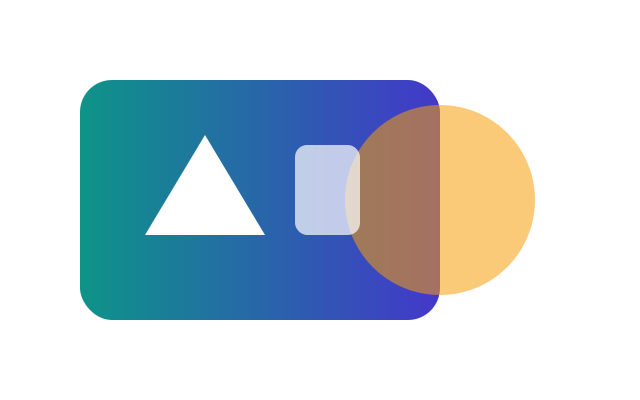
- The PNG should measure 640 × 400 pixels.
- The gradient and partially transparent circle should still be visible.
- If your own file differs, check its dimensions and external dependencies in your design app.
Continue your task
- Convert multiple images and download a ZIP
Follow the batch steps, choose JPG quality, and handle failed files.
- When to use SVG or PNG
Understand the tradeoff between editable vectors and fixed pixels.
- Combine images into one PDF
Put several JPG, PNG, or WebP images in page order.
- Compress an image
Reduce file size when an upload form has a limit.
Fast & Free
No account required. One file mode supports up to 1GB; batch mode has smaller limits shown above.
Secure
Uploads use TLS encryption. Supported image conversions can run in your browser.
Check Your Result
Quality, transparency, and supported features depend on the output format. Keep your original file.
How to Convert SVG to PNG
Choose Your Images
Choose One file or Multiple files. Batch mode accepts up to 20 images, 20 MB each, 100 MB total, and 25 megapixels per image.
Check the Output Format
The output is PNG. In batch mode, choose JPG quality when available, then convert your selected images.
Download Your File
Download individual results, or prepare and download a ZIP in batch mode. Open the images to check the result.
About SVG to PNG
Content reviewed:
Prepare a self-contained SVG
For a predictable result, export an SVG with its artwork included in the file. External images, web fonts, scripts, and stylesheet dependencies may not load when the SVG is decoded as an image. In your design app, convert essential text to outlines and embed linked images before exporting.
Choose dimensions before you convert
This page does not provide custom width and height controls. The browser renders the SVG at the dimensions it resolves from the file. Set explicit width and height in your SVG export to get a predictable PNG size. Keep the SVG so you can render a larger version later rather than stretching a small PNG.
Transparency and white rectangles
A PNG can keep transparent pixels, but conversion does not remove background shapes drawn inside the SVG. If your export has a white rectangle behind the logo, remove that shape in the design file first. Try the sample below to see a transparent result.
What the PNG leaves behind
The PNG is a still raster image. It does not preserve editable vector paths, interactive elements, or the full timeline of an animation. One file mode first tries your browser and may fall back to server processing; the result indicates local processing. Multiple files mode runs entirely on your device and reports files it cannot convert instead of uploading them.
Common reasons to convert SVG to PNG
- Adding a logo to software that accepts PNG but not SVG
- Sharing a still preview of vector artwork
- Preparing a transparent icon for a document or presentation
Frequently Asked Questions
Can I convert an SVG logo without losing transparency?
Yes, when the source has transparent areas and decodes correctly. The browser PNG path does not add an opaque background.
How do I get a larger PNG?
Set the desired width and height when exporting the SVG from your design app, then convert that SVG. This converter does not have a custom-size control.
Why are fonts or pictures missing?
The SVG may depend on fonts or images stored outside the file. Export text as outlines and embed images to make the SVG self-contained.
Will I still be able to edit the vector shapes?
No. PNG stores pixels, not editable vector paths. Keep your source SVG for editing or exporting at other sizes.
Why is there a white background?
The SVG may include a white background shape, or your viewer may display transparency on white. Check the image on a colored background before changing it.
Can I download converted PNG images together?
Yes. In Multiple files mode, convert your selected images, choose Prepare ZIP, then Download ZIP. Only successful conversions are included. Images keep separate filenames; duplicates receive a numbered suffix inside the ZIP. You can also download each image individually.